
When prospective students reach out to your admissions, tutoring, or continuing-education program after hours, they are often highly motivated to enroll. Because staff cannot monitor inquiries around the clock, an unmanaged initial interaction risks losing these prospects. Implementing a structured, compliant auto-reply strategy on your Facebook Page is essential. It serves as your primary engagement tool, reassuring applicants and establishing professional boundaries. Providing a seamless digital experience is a fundamental expectation of modern applicants. A robust response framework protects your brand reputation while maintaining operational efficiency.
For enrollment teams, establishing an after-hours enrollment inquiry auto reply ensures operational excellence. It quickly acknowledges their initiative without making premature promises regarding admissions, pricing, financial aid, deadlines, or programmatic eligibility before a staff member reviews the case.
This checklist explores what acknowledgments should include, how to collect data without requesting sensitive records, and how to verify Page access. We also cover setup, testing, common failure modes, and a framework for human handoff.
1. What an After-Hours Acknowledgment Should and Should Not Do
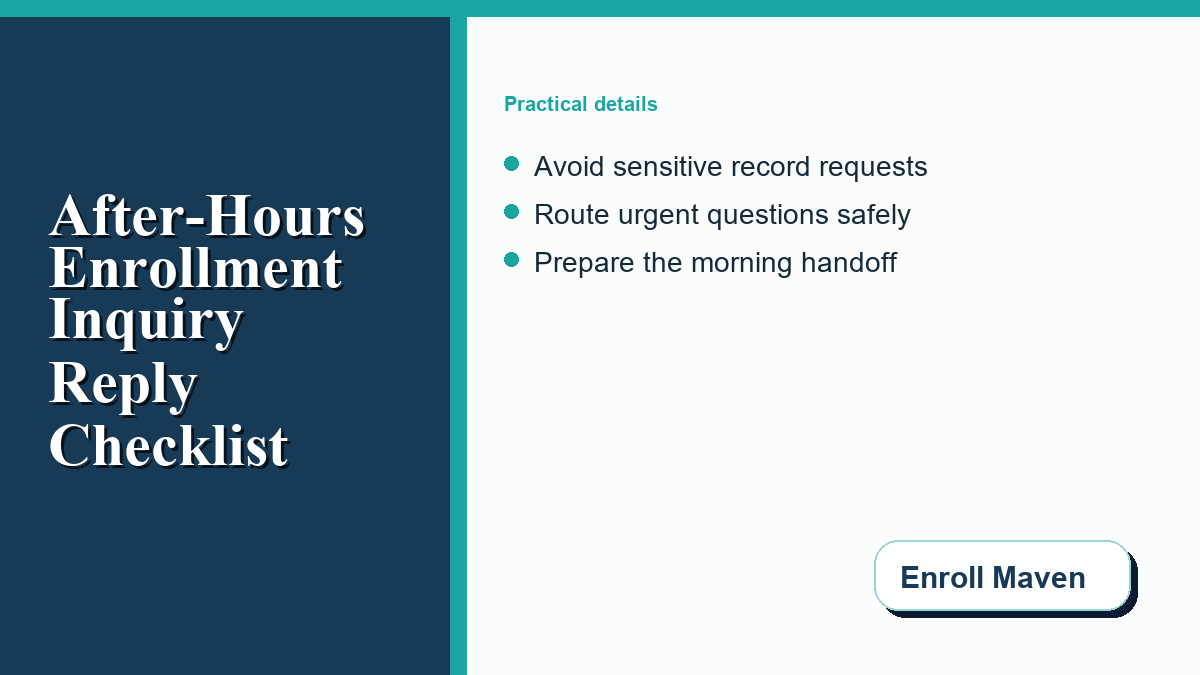
An auto-reply acknowledges receipt and guides the student; it does not process applications instantly. Language must be precise, reassuring, and bounded by institutional policy.
What It Should Do:
The response must acknowledge the inquiry instantaneously. Confirming receipt reduces anxiety and shows you value their interest. The message must state the operating hours of your admissions office, setting realistic expectations for a human reply. Clearly communicating that your office is closed but their message is important prevents the student from feeling ignored.
Direct students to official channels for self-service information, providing links to your admissions website, a public FAQ, or a program overview page. Establish an alternative contact method, like an admissions email, if they prefer not to use Messenger.
What It Should Not Do:
The acknowledgment must avoid commitments. Do not promise admission or assure space in a specific cohort. Pricing and financial aid are individualized; do not quote tuition, estimate financial aid, or claim scholarship eligibility. If a prospective student receives an automated message indicating potential eligibility for a scholarship, only to discover later they are not, the resulting disappointment can damage their trust. Consistency is paramount.
Do not promise a turnaround time you cannot reliably meet over weekends. Refrain from interpreting application deadlines or stating whether a student meets eligibility requirements based on an initial chat. The system’s role is to guide, never to decide.
2. Minimum Data to Request Without Collecting Sensitive Records in Chat
The auto-reply should capture enough context for a staff member to follow up, without prompting the student to share protected information. Facebook Messenger is excellent for outreach but is not a secure portal for submitting official educational documents.
Acceptable Minimum Data Requests:
Ask for the prospective student’s preferred name, the program they are interested in, and a general categorization of their question (e.g., “Are you asking about deadlines or campus tours?”). Requesting an email address is recommended to transition the conversation to a trackable channel.
Strict Prohibitions on Data Collection:
Enrollment teams must design responses to avoid requesting sensitive records. Never ask for a Social Security Number, identification numbers, or financial details.
Do not ask students to upload transcripts, standardized test scores, letters of recommendation, or other official records via Messenger. Health information, disciplinary records, and detailed payment data are off-limits. If document submission is needed, provide a secure link to your institution’s encrypted application portal to protect student privacy.
3. Message Template Framework: Acknowledgment, Response Window, Official Next Step, Urgent-Help Boundary
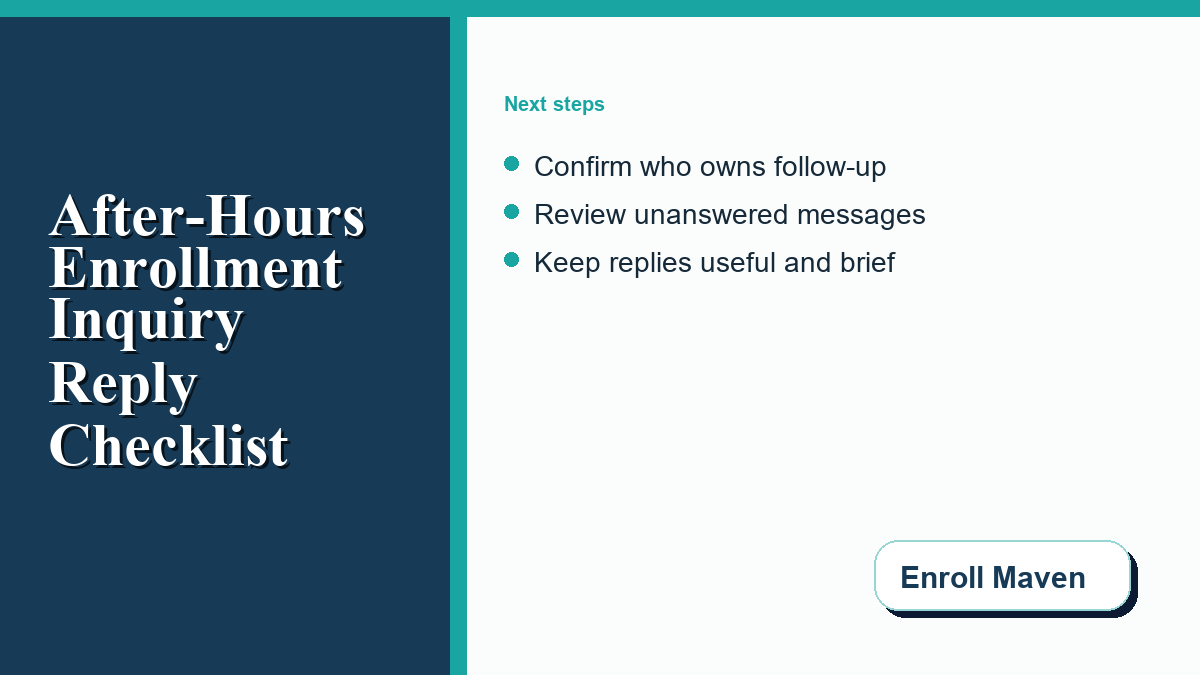
A highly effective auto-reply template framework consists of four components: Acknowledgment, Response Window, Official Next Step, and Urgent-Help Boundary.
The Acknowledgment:
Begin with a warm greeting. “Thank you for contacting the admissions office at Enroll Maven.” This opening sets a reassuring tone and confirms they reached the correct channel.
The Response Window:
Define when the student can expect a human response. Be precise: “Our enrollment team is currently away. Our office hours are Monday through Friday, 8:00 AM to 5:00 PM Eastern Time. We aim to respond by the next business day.”
The Official Next Step:
Give the student something constructive to do. “In the meantime, find our application requirements on our website.” To learn about integrating these steps, review our guide on how enrollment teams can pilot free AI chatbot sites before answering student questions.
The Urgent-Help Boundary:
Define the boundary for emergencies, such as technical issues. “This inbox is not monitored outside business hours. If you are experiencing a technical issue submitting your application on deadline day, please email [support email] to record your timestamp.”
4. Page Access and Ownership Checklist
Before implementing an instant reply, ensure your team has correct administrative permissions.
Verify Page Access Levels:
The person setting up the auto-reply needs suitable Page or task access, typically as an authorized Page manager with access to messaging settings, noting interface labels can vary, to configure automated responses in the Meta Business Suite.
1. Navigate to the Meta Business Suite.
2. Select your institution’s Page.
3. Go to Settings, then Page roles or Page access.
4. Confirm the enrollment communications manager has permissions to edit messaging settings.
Define Clear Ownership:
Establish clear ownership for the auto-reply system. Determine who updates the message for holidays and who monitors the inbox when the office opens. This ensures timely follow-ups. Cross-training your staff on these responsibilities is equally important. By ensuring that at least two team members are fully familiar with the Business Suite navigation and the messaging schedule, your operations will remain uninterrupted even if a key staff member is unexpectedly out sick.
5. Setup and Testing Checklist for Instant Replies
According to the Meta Help Center instant-reply guidance, instant replies are sent as the Page’s first response to a new message, but they are not sent when your Page’s messaging status is set to ‘Away’.
For a technical guide on platform automation, learn how to set up automatic reply on FB Messenger to ensure foundational routing is correct.
The Setup Phase:
| Checklist Step | Action Required | Important Consideration |
|---|---|---|
| 1. Platform Access | Log into the Meta Business Suite for your specific institutional Page. | Confirm you are using an account designated as an authorized Page manager with access to messaging settings, noting interface labels can vary, to prevent access errors. |
| 2. Tool Navigation | Navigate directly to the Inbox section and click the Automations icon. | Familiarize yourself with the layout, as Meta updates the interface frequently. |
| 3. Initial Configuration | Locate the Instant Reply option, toggle it On, and select the Messenger platform. | Ensure you only select channels your team actively monitors to prevent unread messages. |
| 4. Message Drafting | Enter your drafted message utilizing the recommended template framework. | Avoid any inline CSS or unsupported scripts; simple plain text is strictly required. |
| 5. Finalization | Review the text for typos, verify all URLs, and save your changes. | Double-check that office hours stated match your current term’s schedule perfectly. |
The Testing Phase:
Never launch without testing. Use a personal account to send a test message outside business hours. Verify the instant reply triggers immediately, links are clickable, and tone is professional.
Test the Away status interaction. Set your Page status to Away manually, send a test message, and verify the instant reply is suppressed or replaced by your designated Away message. As discussed in crafting an effective learning environment for success: a comprehensive guide to key components and examples, clear structure is essential.
6. Common Failure Modes: Wrong Channel, Away Status, Access, Stale Copy, Missing Human Owner
Enrollment teams must remain vigilant against common failure modes. Failure to proactively manage these systems can transform a helpful tool into a liability, creating friction in the student experience and generating additional work for staff.
Wrong Channel Alignment:
A Page might send the same instant reply across Facebook Messenger, Instagram Direct, and WhatsApp, even if the team only monitors Messenger. Restrict automation strictly to channels actively resourced and monitored.
The ‘Away’ Status Conflict:
If your Page is set to Away status, the standard Instant Reply might not trigger. You must understand the interplay between the standard Instant Reply and the customized Away Message to ensure consistent off-hours coverage.
Loss of Access:
If the only person with administrative access leaves without transferring permissions, the team loses the ability to update the auto-reply. Maintain redundant administrative access.
Stale or Inaccurate Copy:
Referencing an old deadline signals that the institution is disorganized. Review and update auto-replies regularly around term transitions and holidays.
The Missing Human Owner:
An auto-reply that works perfectly but is followed by silence is a catastrophic failure. If no staff member reviews the inbox each morning, inquiries languish. The auto-reply must begin a workflow, not end it.
7. Human Handoff and Audit Checklist
The transition from the automated Page acknowledgment to a live human conversation is critical. A designated staff member must seamlessly pick up where the auto-reply left off.
The Morning Handoff Procedure:
1. The enrollment specialist logs into the Meta Business Suite Inbox at the start of the business day.
2. They review all messages received overnight.
3. The specialist responds to each inquiry, referencing the automated acknowledgment: “Good morning! I see you received our automated message last night. I am happy to help.”
4. The specialist evaluates the provided information and answers accurately without making admissions promises over chat.
5. Encourage the student to schedule a call, register for an info session, or submit an official inquiry form.
The Audit Checklist:
Enrollment directors must conduct regular audits:
– Monthly Copy Review: Is the message text still accurate?
– Bi-weekly Response Time Check: Are staff following up within the promised window?
– Quarterly Access Verification: Do the right staff members have correct Page roles?
– Compliance Spot-Check: Are staff adhering to rules against requesting sensitive data or making admissions promises?
8. Frequently Asked Questions
Does setting up an instant reply ensure a faster enrollment process?
No. An instant reply provides a faster acknowledgment of the inquiry, improving the student’s experience. It does not accelerate the actual review of qualifications, application processing, or admissions decisions, which remain dependent on human staff.
Can we use the auto-reply to tell students if they qualify for financial aid?
Absolutely not. Financial aid qualification is a complex process requiring official, sensitive financial documents. An auto-reply should never estimate aid, promise scholarships, or request financial data. It should only provide links to official resources.
What happens if a student replies with their Social Security Number?
If a student inappropriately shares sensitive information in Messenger, the staff member must act immediately. Inform the student that Messenger is not secure, direct them to the secure portal, and archive the message from the inbox to protect their privacy.
Is it necessary to have a third-party tool to send an after-hours reply?
No. The native tools within the Meta Business Suite are sufficient for a basic, reliable after-hours instant reply.
How frequently should we update the automated message copy?
Review and update the copy at least once a term. Any time there is a change in office hours, such as during holiday breaks, the message must be updated immediately to prevent students from receiving inaccurate information.
Should we create a separate auto-reply for different academic programs?
If your institution maintains separate Pages for distinct programs, each Page should have a tailored auto-reply. If your institution uses a centralized admissions Page, keep the auto-reply broad and welcoming for all prospective students.
0 Comments